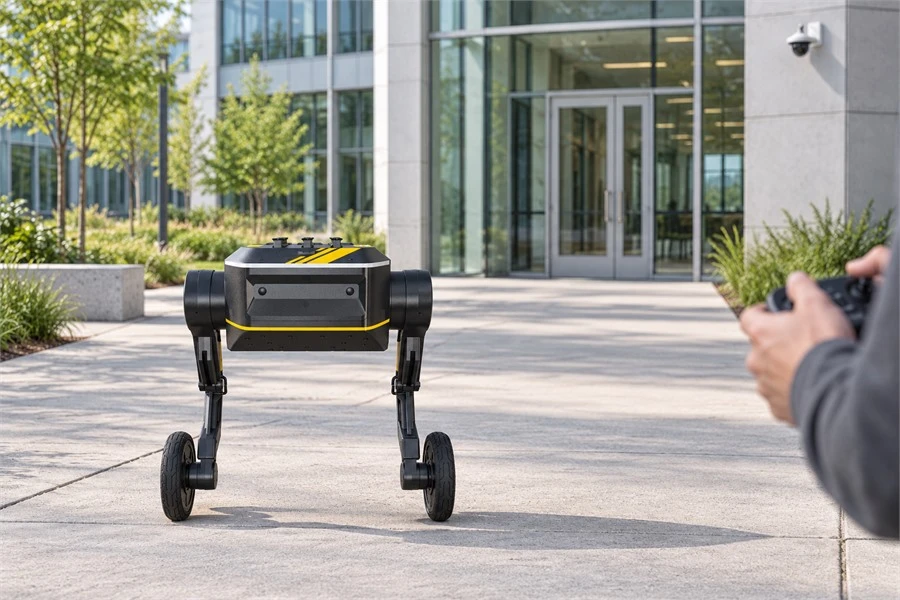
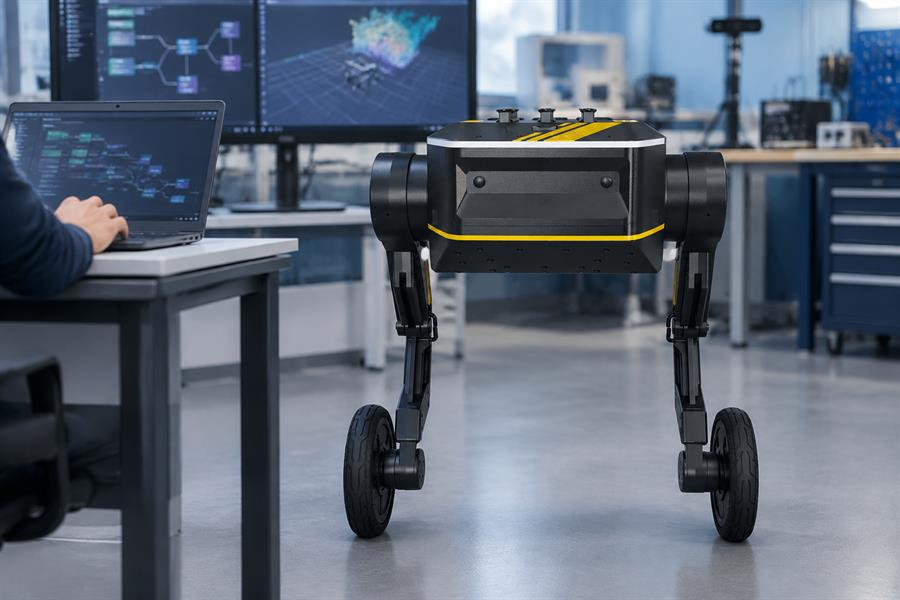
Remote robotics projects often hit the same obstacle: teams need to control a real robot and validate movement before developing autonomy, but building the balance, posture, and command layer from scratch takes significant time. DIABLO addresses this challenge as an open wheeled-leg development platform.
At Direct Drive Tech, we developed DIABLO around an open SDK and ROS 2 control interfaces for remote-operation development. A keyboard, RViz2 panel, or custom ROS 2 application can send commands from a remote workstation while DIABLO reports its motion, motor, battery, and operating status. These interfaces support remote operation, state feedback, and research development before teams add navigation or higher-level autonomy. The DIABLO robot platform combines two-wheel mobility with articulated legs, giving operators more control over how the robot moves and interacts with its environment.
How human-in-the-loop control supports remote robotics
Across delivery, inspection, and research, teams increasingly need a person to intervene when routes, surfaces, payloads, or task conditions are not fully predictable. A delivery prototype may need manual control near a loading point or unexpected obstruction; an inspection operator may need to reposition the robot and adjust its body to frame a sensor; a research team may need repeatable commands and feedback before trusting higher-level autonomy. DIABLO connects these needs with an open SDK and ROS 2 interfaces, so human decisions can remain part of the control loop while software is developed incrementally.
The connection starts on the robot. DIABLO uses diablo_ctrl_node to communicate with the robot hardware and obtain SDK control authority. The operator computer then joins the same ROS 2 domain through the local network.
At a high level, the robot-side control node and operator client share a ROS 2 domain; refer to the DIABLO SDK documentation and DIABLO ROS 2 package for the exact commands, ROS_DOMAIN_ID, mode_mark values, control-authority requirements, and keyboard mappings.
Once the required software is installed and configured, the minimum startup flow is to verify the hardware and repository versions, set the same ROS_DOMAIN_ID on both sides, using 5 as shown in the example, run ros2 run diablo_ctrl diablo_ctrl_node on the robot and ros2 run diablo_teleop teleop_node on the operator computer, follow the selected example for controller authority, and confirm robot feedback before starting at low speed.
What a remote operator can control
DIABLO's control interface covers the functions most operators need during a remote session. Forward and reverse motion use the forward value, while turning uses left. In standing mode, the operator can adjust roll and pitch, level the body, change height, and control head pitch. Selected functions support both position-style and speed-style control. Position control is useful when you want DIABLO to reach a defined posture; speed control is better when you want to keep adjusting the movement while watching the robot.
| Control area | Remote capability | Typical use |
|---|---|---|
| Locomotion | Forward, backward, left turn, and right turn | Driving across a lab, warehouse aisle, campus route, or inspection area |
| Body posture | Roll left or right, pitch adjustment, and return to level | Keeping the body aligned while positioning the robot or approaching an uneven surface |
| Height | Minimum, medium, and maximum standing height, plus position or speed control | Changing visibility, clearance, or stability during a remote task |
| Head pitch | Look up, level, or look down, with position and speed control options | Aiming a front-mounted camera or sensor toward a target area |
| Operating mode | Switch between standing and creeping/crawling operation | Choosing agility or a lower, load-oriented body configuration |
Keyboard, RViz2, and custom clients provide different ways to send the same control intent; use the official teleoperation examples and development documentation for key mappings, mode commands, and test procedures, and keep advanced actions inside a clear test area with a supervised payload and an accessible emergency stop.
Choose standing or creeping mode for the task
Standing mode keeps DIABLO upright for agile movement, posture adjustment, and sensor positioning. With a maximum payload of 4 kg, it suits remote inspection prototypes, mapping, and research tasks carrying compact sensor equipment.
Creeping mode lowers the robot for heavier loads and low-profile travel, supporting a maximum payload of 80 kg. Choose this configuration when load handling or clearance is the main constraint. In either mode, set a software speed limit appropriate to the payload and route, staying within DIABLO’s maximum travel speed of 2 m/s. Check load distribution, floor conditions, route geometry, and the complete robot configuration before operation.
Before switching modes, verify that the payload is within the target mode’s limit and follow the user manual’s switching procedure. The remote client can then send the mode-setting command and monitor the transition. Resume movement only after DIABLO reports the intended mode. Do not assume that the SDK automatically checks payload or enforces a mode interlock.
What DIABLO sends back during remote control
Remote control is much easier when the operator can see what the robot is doing. DIABLO's ROS 2 interfaces provide motion, mechanical, power, and status information that can be shown in RViz2, logged during a test, or used by a supervisory program.
-
Motion and mechanical feedback: The
/diablo/sensor/Imuinterface provides quaternion, angular-velocity, and acceleration data. The/diablo/sensor/ImuEulerinterface provides pitch, roll, and yaw feedback. The/diablo/sensor/Motorsinterface exposes six motor states, including encoder revolutions, position, angular velocity, current, and left/right leg length. - Power and robot status: Battery feedback includes voltage, bus current, and remaining percentage. Status feedback identifies control authority, standing or creeping mode, transitions, error codes, and warning codes.
For a beginner-friendly operator panel, focus first on data that supports an immediate action. IMU and motor readings show whether DIABLO is responding as expected. Battery data helps determine whether the session should continue. Status data tells the operator whether the robot is ready, transitioning between modes, or reporting a fault. Connect these signals to practical safeguards, such as slowing movement, pausing a mode change, or requesting human intervention.
Three practical ways to use DIABLO teleoperation
Keyboard driving is a simple way to check a new setup and confirm the control path during development.
RViz2 combines control inputs with robot-state visualization in one window, which can help during lab experiments and supervised route tests.
A custom ROS 2 client is appropriate when DIABLO becomes part of a larger system. A joystick, web interface, mission planner, safety supervisor, or autonomy node can generate MotionCtrl messages while a human keeps authority over mode changes and immediate movement. LiDAR, GPS, depth cameras, and collision-avoidance modules can extend DIABLO for mapping, inspection, navigation, or delivery prototypes. Each added component still needs its own mounting, power, communications, and software integration plan.
For a representative delivery prototype, a remote operator might supervise a route, use status and battery feedback, and take over near a loading point or unexpected obstacle. Standing mode may fit agile movement, while a heavier or lower-profile task may require checking creeping mode; navigation, collision avoidance, live video, and mission planning still require separate integration. This is an illustrative workflow rather than a claim of completed deployment.
Start remote operation with a controlled workflow
Start-up check: Before moving the robot, verify the ROS 2 domain, confirm that the intended client has control authority, check the mode and battery feedback, and test low-speed movement. The top-speed limit is 2.0 m/s; exceeding it can permanently damage the robot. A lower software speed limit is a sensible choice for early testing.
Handover and stopping: The remote operator manages normal movement, mode changes, pauses, and handover, while the on-site monitor remains responsible for the physical emergency stop and stays within reach of the robot. For a normal task pause, use the configured controlled-stop procedure only after verifying its behavior for the deployment; do not treat software stopping as a verified safety function by default. Follow the user manual's emergency procedure for the physical stop: it deactivates the robot, the operator must hold the handle securely, and loaded operation requires the manual's stated restrictions. Secure the payload and define the emergency plan before a loaded demonstration.
Communication exception: Define and verify what happens when network latency, stale commands, lost video, or loss of control authority occurs. The task should stop or pause according to the configured behavior, the site monitor should be notified, and a controlled handoff should be completed before operation resumes.
Live video is a separate integration step. The core control topics provide motion and robot-state feedback. If the operator must drive from a camera view, add a compatible camera and video-streaming path, then align that visual feed with the ROS 2 telemetry. Our DIABLO tutorials and SDK resources provide the starting point for robot-side setup, while the DIABLO ROS 2 package provides the control and sensor interfaces for custom clients.
We built DIABLO so a human can remain in the loop while software gradually takes over perception, navigation, or task planning. Movement, posture, height, head orientation, operating mode, and machine-state feedback remain available through one development path. Before deploying a remote-control application, confirm the required hardware, ROS 2 version, payload, and safety setup. Review the DIABLO SDK documentation to begin.